Introduction
Today’s training focused on some of the most important developer-level areas of WordPress:
- How a theme is structured internally
- How themes behave in Multisite environments
- How to quickly test and extend the REST API
- How to automate site management using WP-CLI
I already have hands-on experience building custom WordPress themes. In fact, this very website you’re reading this on runs on a custom WordPress theme I developed from scratch. Still, revisiting the fundamentals helped me connect every layer of the WordPress stack.
1. Understanding WordPress Theme Structure
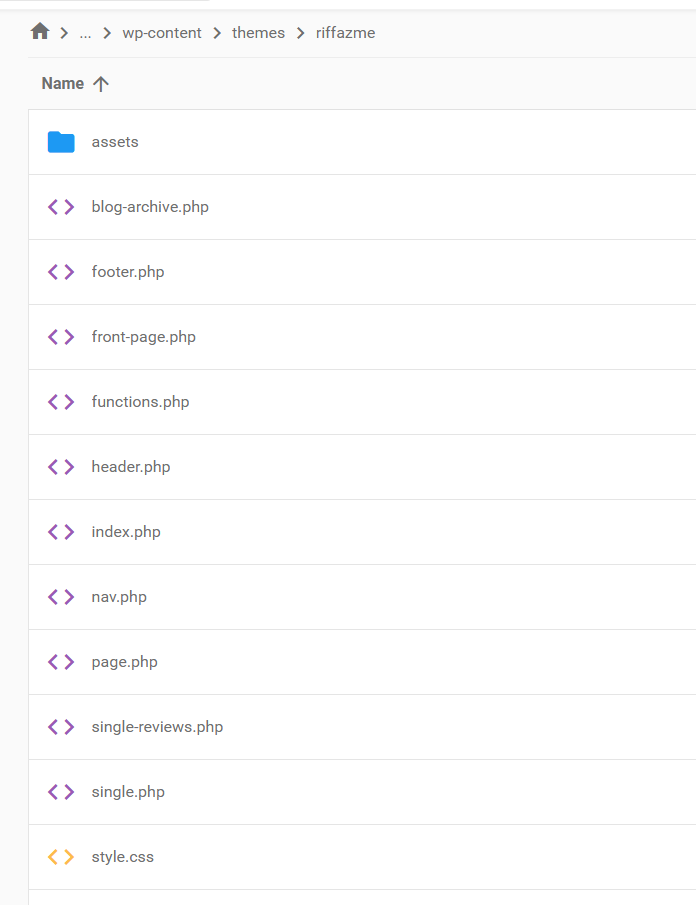


A WordPress theme includes both design files and PHP templates that control how content is displayed.
Typical files you’ll see inside any theme directory:
style.css– theme info & global stylesfunctions.php– adds features, hooks, scriptsindex.php– main templatesingle.php,page.php,archive.php,404.php– specific page templatesscreenshot.png– theme preview image- For block themes:
theme.json,/templates/,/parts/folders
Docs: Theme Handbook
Minimal example
style.css
/*
Theme Name: Riffaz Me
Theme URI: http://riffaz.me
Author: Riffaz Aman
Author URI: http://riffaz.me
Description: A custom portfolio theme with a blog for showcasing your work.
Version: 1.0
License: GNU General Public License v2 or later
License URI: http://www.gnu.org/licenses/gpl-2.0.html
Tags: portfolio, blog, responsive, bootstrap
Text Domain: rif
*/
index.php
<?php get_header(); ?>


<div class="container">
    <?php if (have_posts()) : while (have_posts()) : the_post(); ?>
        <h2><a href="<?php the_permalink(); ?>"><?php the_title(); ?></a></h2>
        <div class="entry">
            <?php the_content(); ?>
        </div>
    <?php endwhile; endif; ?>
</div>

<?php get_footer(); ?>
2. WordPress Multisite – How Themes Work Differently
In a Multisite Network, themes aren’t installed individually per site.
They are installed once at the Network Admin level and then enabled for each site.
Key points:
- Only the network admin can install or delete themes.
- A theme must be network-enabled before sites can activate it.
- Site admins can activate any enabled theme, but can’t upload new ones.
Docs: WordPress Multisite Overview
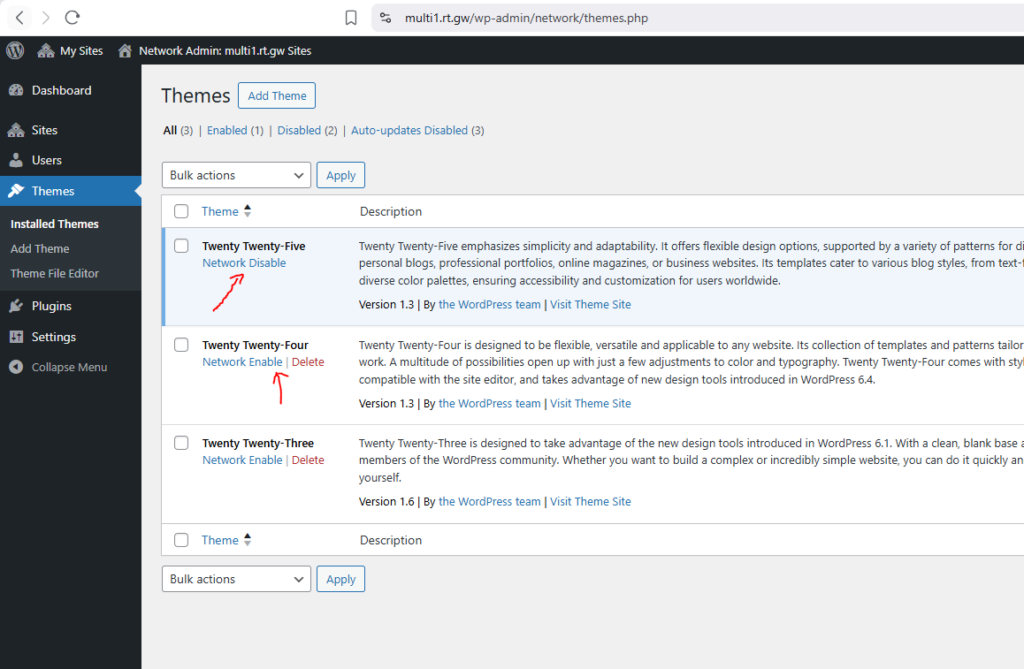
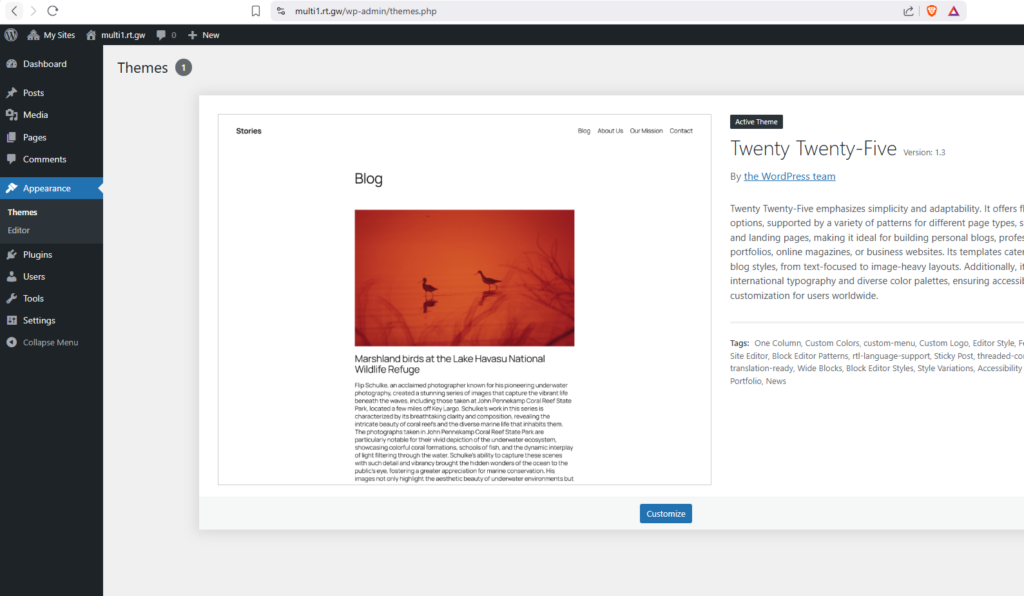
In a Multisite network, themes are centrally managed install once, enable globally, then activate per site.
2.1 Creating and Using a Child Theme
A Child Theme is a lightweight theme that inherits all templates and functionality from another theme, known as the Parent Theme.
It lets you customize or extend your site without touching the parent’s code, so your changes remain safe when the parent theme updates.
When to Use a Child Theme
- You’re customizing a downloaded or premium theme
- You want to override specific templates or styles
- You plan to add functions or modify layouts without editing the main theme files
Basic Child Theme Structure
/wp-content/themes/
   ├── parent-theme/
   └── my-child-theme/
        ├── style.css
        └── functions.php
Example: style.css
/*
 Theme Name: Riffazme Child
 Template: riffazme
 Version: 1.0.0
 Description: Child theme for the Riffazme theme.
 Author: Riffaz
*/
Template must match the folder name of the parent theme exactly
functions.php
<?php
// Enqueue parent + child styles
add_action('wp_enqueue_scripts', function () {
    // Parent stylesheet
    wp_enqueue_style(
        'riffazme-parent',
        get_template_directory_uri() . '/style.css',
        [],
        wp_get_theme(get_template())->get('Version')
    );

    // Child stylesheet
    wp_enqueue_style(
        'riffazme-child',
        get_stylesheet_uri(),
        ['riffazme-parent'],
        wp_get_theme()->get('Version')
    );
}, 20);
Activating the Child Theme
- Zip your child theme folder (or upload via FTP).
- Go to Appearance → Themes → Activate “My Child Theme.”
- WordPress will automatically use templates from the child if they exist, otherwise fall back to the parent.
Key Benefit
You can safely update the parent theme anytime your customizations stay intact.
Docs: Official Child Theme Guide
3. REST API – Modern Access to WordPress Data
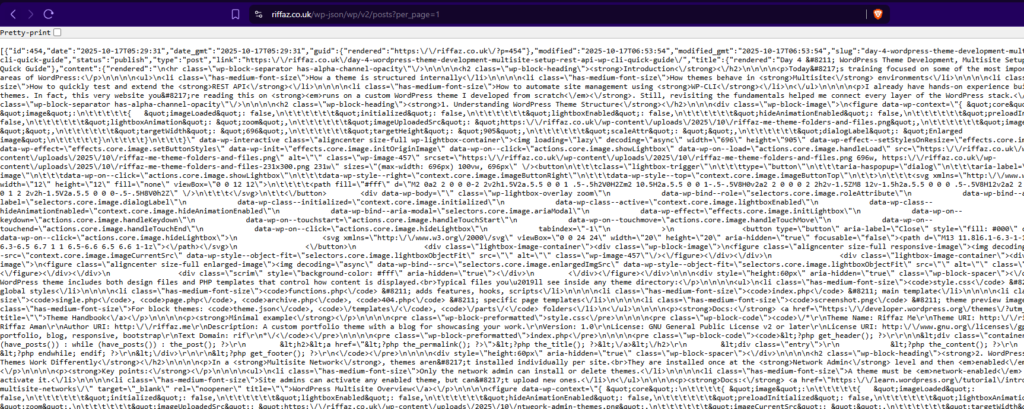
The REST API lets external apps, mobile clients, or even your own JavaScript communicate with your site data in JSON format.
Try these sample GET requests:
- Posts:
/wp-json/wp/v2/posts - Pages:
/wp-json/wp/v2/pages - Users:
/wp-json/wp/v2/users
Add a quick custom endpoint
add_action('rest_api_init', function () {
  register_rest_route('my/v1', '/ping', [
    'methods'  => 'GET',
    'callback' => fn() => ['ok' => true, 'time' => time()],
    'permission_callback' => '__return_true',
  ]);
});
Visit /wp-json/my/v1/ping – We sould see the above custom JSON response.
Docs: REST API Handbook
4. WP-CLI – Command Line Power for WordPress
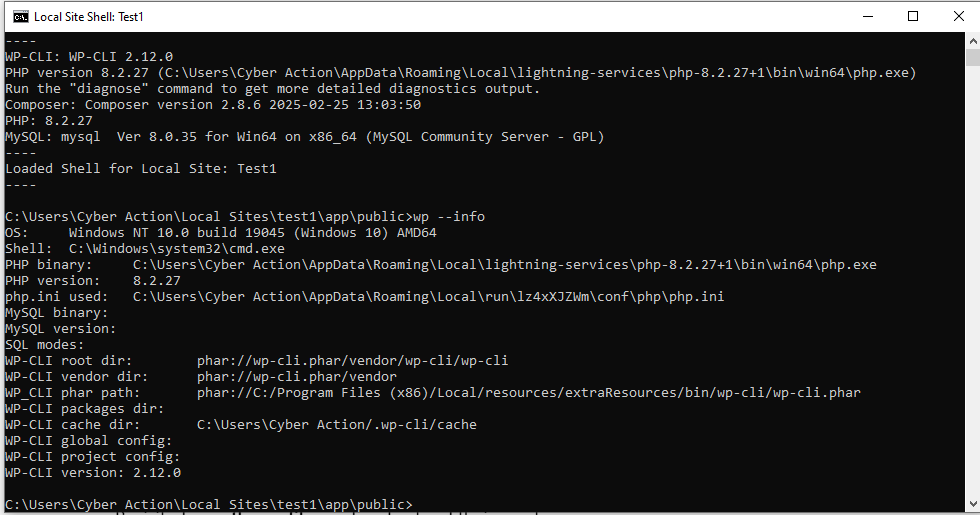
WP-CLI allows developers to manage WordPress installations directly from the command line, perfect for automation, debugging, and deployments.
Essential commands to try
wp --info
wp core version
wp plugin list
wp theme list
wp cache flush
wp user list
wp post list --post_type=page --fields=ID,post_title,post_status --format=table

Docs: WP-CLI Command List
What I Learned Today
I revisited the core theme files and finally understood how each one works together to form a complete WordPress theme. Seeing my own theme structure (riffazme) made it easier to relate theory to something I’ve actually built.
Then I explored how Multisite handles theme installation and activation. I never fully appreciated before how themes are managed at the network level and shared across multiple sites. A simple but powerful concept.
I also experimented with the REST API, fetching real post data and even registering a quick custom route. It’s amazing how a few lines of code can expose your entire WordPress data to external apps.
Next, I tried out WP-CLI the command-line tool that gives instant admin-level control. Listing plugins, flushing cache, and even adding custom commands felt both fun and efficient.
And to top it off, I realized this very website you’re reading is the best proof of my theme development experience. It runs entirely on my own custom theme.
Day 4 wrapped up with some of the most essential developer skills every WordPress engineer should master. From theme architecture to REST API and WP-CLI, these tools are the real foundation of professional WordPress development and exactly what I’ll be applying daily at any WordPress agency/company or beyond.