Today’s training was a big shift from pure development topics. We stepped into the WordPress.com ecosystem, which is completely different from self-hosted WordPress.org sites. For anyone aiming to be a WordPress Support Engineer, this is a must-know area because so many users mix the two up.
Understanding WordPress.com vs WordPress.org
This is probably one of the most common confusions users have. WordPress.com is a managed hosting platform built by Automattic where WordPress runs on their servers. WordPress.org is open-source software that anyone can install on their own hosting.
When users ask things like “Why can’t I install plugins on my Premium plan?”, the answer often lies here, only the Business plan and above on WordPress.com support plugin installations.
A fresh and exciting feature Jetpack AI Builder is now integrated into WordPress.com. It helps users instantly create a professional-looking website or even generate a custom logo with AI assistance.
I took a look at the guides below, and it’s surprisingly beginner-friendly. It asks a few questions about the site’s purpose and then builds a base layout with relevant pages. As a support engineer, the goal isn’t just to use it but to help users understand what it can and can’t do, especially those expecting “AI magic” to replace real customization.
This part helped me understand how domains work inside WordPress.com — registering, connecting, transferring, and even renewing. The platform gives a free domain for one year when someone buys an annual plan, which users often forget to renew later.
Common scenarios in tickets:
“Why is my site still showing wordpress.com in the address?”
“Can I use my GoDaddy domain here?”
“My domain expired, what can I do?”
Each of these has a specific guide, and it’s crucial to point users to the right solution instead of explaining everything manually.
Every support engineer eventually deals with plan upgrades, renewals, and refunds. Learning these processes helps us guide users confidently without escalating unnecessarily.
Email Setup (Google Workspace & Professional Email)
I also explored how users can connect Professional Email or Google Workspace to their WordPress.com domain. This is an area where many users expect it to “just work automatically,” so understanding how to walk them through the DNS and MX record setup is key.
Finally, there’s a massive collection of guides under Troubleshooting Category I bookmarked this one since it’s basically a goldmine for any future support situation – login errors, editor issues, or domain propagation delays.
What I learned Today
This day really connected the dots between product knowledge and customer empathy. It’s not just about knowing where to click. It’s about understanding what a user is actually trying to achieve and pointing them to the right guide instead of overwhelming them.
From the AI builder to payment handling, this was a day that truly felt like stepping into the customer’s shoes.
Today’s focus was on debugging WordPress effectively and understanding the core parts of WordPress development that every support engineer must know.
I began by learning how to turn on debugging safely using constants in wp-config.php, and then explored three powerful helper plugins, Query Monitor, WP Crontrol, and User Switching to track performance issues, manage cron events, and reproduce user-specific bugs.
After mastering debugging, I moved into core WordPress development:
creating a small plugin,
basic concept of creating plugins
custom post types
custom taxonomies
wp_query
This day tied everything together showing how WordPress works under the hood, and how to quickly troubleshoot, extend, and optimize any site with professional-level tools.
01. Defining Debugging Constants in WordPress
When working as a support engineer or developer, debugging is your best friend — but it should always be enabled safely. WordPress allows you to control what errors appear and where they’re stored using a few simple constants inside wp-config.php.
Add the following lines above the comment /* That's all, stop editing! Happy publishing. */:
define( 'WP_DISABLE_FATAL_ERROR_HANDLER', true ); // WP 5.2 +: show real fatal errors while developing

define( 'WP_DEBUG', true ); // turn on WordPress debug mode

define( 'WP_DEBUG_DISPLAY', false ); // hide errors from the browser

define( 'WP_DEBUG_LOG', true ); // log all errors to /wp-content/debug.log

define( 'SCRIPT_DEBUG', true ); // load unminified core CSS and JS files
What Each Constant Does
Constant
Purpose
WP_DISABLE_FATAL_ERROR_HANDLER
Disables WordPress’ built-in “white screen protection,” so you can view actual fatal errors while developing. (Only use this on local or staging environments.)
WP_DEBUG
Enables all PHP notices, warnings, and errors for WordPress and plugins.
WP_DEBUG_DISPLAY
Hides errors from the frontend or admin area to avoid breaking layouts.
WP_DEBUG_LOG
Saves all errors to /wp-content/debug.log, which can be opened in any text editor.
SCRIPT_DEBUG
Forces WordPress to use non-minified core files, making it easier to trace JS and CSS issues.
Where to View the Log
Open the file: example.com/wp-content/debug.log
You can also use a plugin such as Log Viewer or Error Log Monitor to read this log directly from the dashboard.
⚠️ Safety Notes
These settings are for development only.
On live sites, set WP_DEBUG and SCRIPT_DEBUG to false, and remove the fatal-error-handler line.
Clear or rotate the debug.log regularly to prevent it from growing too large.
Combine this setup with plugins like Query Monitor or WP Crontrol for a complete debugging workflow.
02. Helper Plugins for Debugging in WordPress
There are certain WordPress plugins that make it much easier to debug PHP errors, actions, filters, enqueued scripts and stylesheets, and even HTTP requests. In this section, we’ll go over three essential ones Query Monitor, WP Crontrol, and User Switching and see how each helps during development and troubleshooting.
Checked for slow database queries and heavy hooks on page load.
WP Crontrol
Lets you view and manage cron events and scheduled tasks.
Disabled duplicate or unnecessary cron jobs during testing.
User Switching
Quickly switch between users without logging out/in.
Reproduced role-specific bugs (Subscriber vs Admin) safely.
Query Monitor
Query Monitor adds a complete developer tools panel inside WordPress. It lets you inspect almost everything happening behind the scenes:
Database queries (with execution time and source)
PHP errors and notices
Hooks and actions currently running
Enqueued scripts and styles
REST API and Ajax calls
HTTP API requests and responses
Block Editor blocks and capability checks
The plugin automatically adds a toolbar entry in the WordPress admin bar; click it to open detailed tabs for each section.
Why it’s useful Query Monitor instantly shows slow database queries or heavy hooks, helping identify performance bottlenecks. It’s a must-have in every development or staging site.
Here’s a brief introduction about the plugin and what information it displays and where:
Anything consistently over 0.05 seconds per query or memory use above 64 MB on simple pages is worth optimizing.
Example
“If a plugin is making 40 duplicate queries per page. Disabling it cut load time from 2.5 s to 1.3 s.”
WP Crontrol
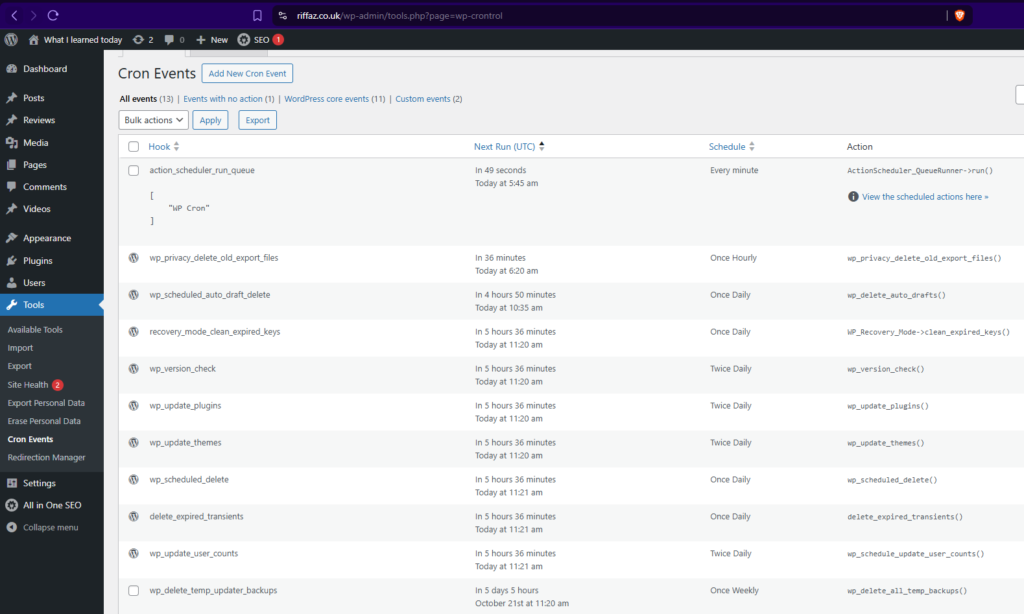
WP Crontrol allows you to view, manage, and debug WordPress Cron events directly from the admin area. From its interface you can:
View all cron events with their hooks, arguments, recurrence, and next-run time
Edit, delete, or immediately run any event
Add custom cron events or custom schedules
Bulk-delete unwanted events
Export cron events to a CSV file
Why it‘s useful This plugin helps verify whether scheduled tasks (like emails, imports, or backups) are running properly. A common cause of “nothing happens” issues in WordPress.
You can read more about WP Crontrol on its plugin page.
User Switching
User Switching lets you instantly swap between user accounts without logging out and back in. Normally, testing as a specific user means resetting passwords and logging in manually; this plugin saves all that time.
Helpful when:
An issue appears only for specific users or roles (e.g., “Subscriber can’t see button”)
You need to test restricted content, membership, or checkout flows for different roles
Just click Switch To under any user in Users → All Users, and you’ll be logged in as them instantly. A single click restores your original admin session.
After completing the debugging and helper plugins session, I took a short lunch break. Once back, I moved on to the Basic Plugin Development module starting with how plugins are structured, how to register them properly, and how WordPress hooks (actions and filters) connect everything behind the scenes.
03. Basic Plugin Development – Quick Start
Before diving into the deeper APIs, I focused today on understanding how plugins are structured and how hooks connect everything inside WordPress.
I began with a quick hands-on experiment using an MU-plugin to understand how WordPress executes hooks, and then gradually explored how actions and filters form the core of every plugin.
Understanding Hooks with an MU-Plugin
Before building a regular plugin, I tested how WordPress triggers hooks internally by creating a small MU-plugin (Must-Use Plugin). MU-plugins load automatically on every request, making them perfect for experiments and debugging.
Steps followed:
Created a new folder: wp-content/mu-plugins/
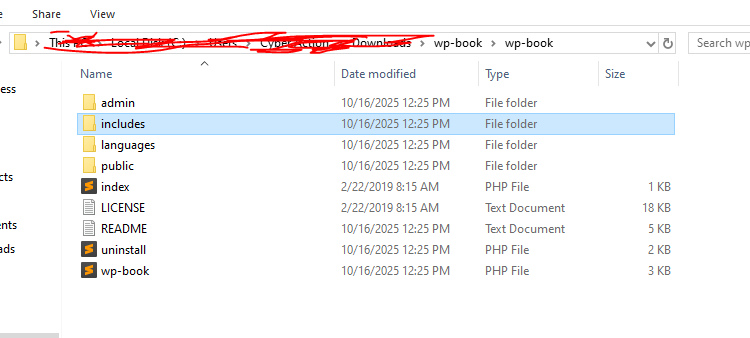
Added a file: wp-content/mu-plugins/hook-watcher.php
hook-watcher.php
<?php
/**
* Plugin Name: Hook Watcher (MU)
* Description: Logs every hook that fires — for learning purposes only.
*/

if ( ! defined( 'ABSPATH' ) ) exit;

// Extremely noisy — use only on local environment
add_action( 'all', function ( $hook ) {
 error_log( $hook ); }
);
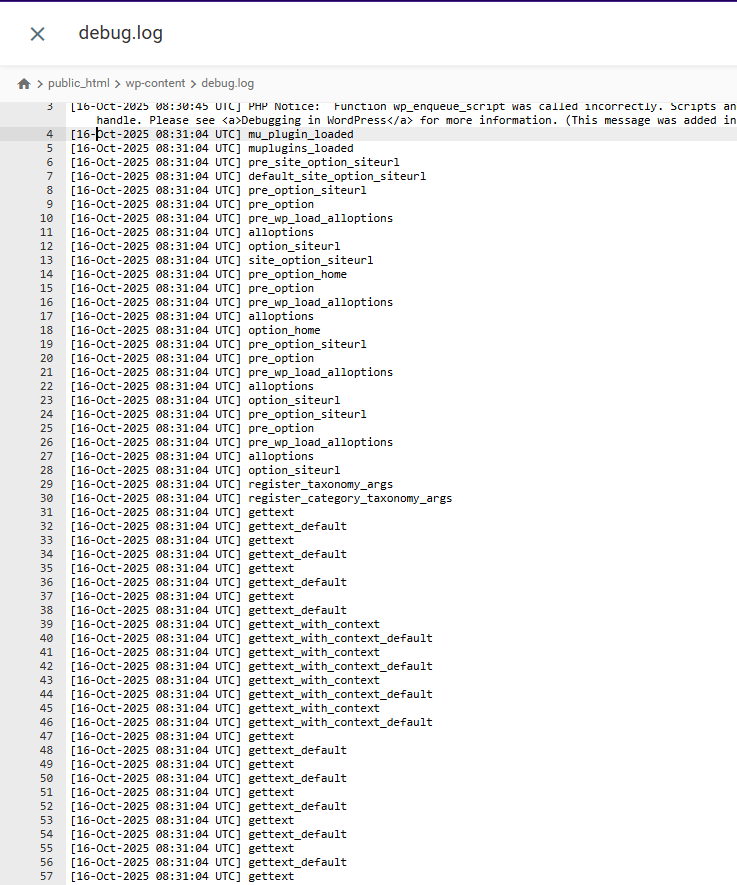
With WP_DEBUG_LOG enabled, this script records every WordPress hook into /wp-content/debug.log.
What I Observed
Opening the log showed a long list of hook names like:
🧩 3. Hooks – Actions and Filters
Hooks are the backbone of WordPress extensibility. They allow plugins, themes, and even core to “talk” to each other.
Effect: This replaces every rendered block on the site with a random image from Picsum. It clearly shows how a filter can intercept and modify the final output before display. (And yes, remove this after testing 😄)
💡 Ideas to Explore
1️⃣ What is the purpose of add_action() and how is it implemented? add_action() attaches your custom function to a hook so it runs at a specific moment.
Use priority to control the order when multiple functions are attached to the same hook.
✅ Summary
MU-plugins are great for quick experiments and debugging.
add_action() runs your code at a specific point.
add_filter() modifies data before it appears.
do_action() and apply_filters() are what actually fire those hooks.
Priority lets you decide the order of execution.
Together, these form the core foundation of how every WordPress plugin works.
04. Custom Post Types and Taxonomies – Quick Run
With limited time left in the day, I did a short but practical run on Custom Post Types (CPTs) and Custom Taxonomies. Two features that make WordPress flexible beyond posts and pages.
1. Custom Post Types
A Custom Post Type lets you create new types of content. For example, Books, Projects, or Reviews, each with its own editor and structure.
You register a CPT using the register_post_type() function, usually inside a plugin or in functions.php.
Defines all text displayed in the admin for this CPT (name, add new, edit, etc.).
public
Makes it visible on the frontend and admin menu.
has_archive
Creates an archive page like /books/.
rewrite
Defines custom URL slug for the CPT.
supports
Enables features like title, editor, thumbnail, etc.
show_in_rest
Enables block editor and REST API support.
menu_icon
Sets a custom icon in the dashboard menu.
👉 In short:labels control the text users see; args control how the post type behaves.
2. Custom Taxonomies
A taxonomy groups related posts together. For example, genres for books or skills for projects. WordPress includes two default taxonomies: Categories and Tags, but you can create your own.
Custom Taxonomies group content within those post types.
Use them when default categories/tags don’t fit your structure.
05. WP_Query – Custom Queries in WordPress
I also did a quick review of WP_Query, the main class that controls how WordPress retrieves posts from the database.
What is WP_Query?
WP_Query is the core query class that WordPress uses to fetch posts, pages, or custom post types based on specific conditions — for example, only posts from a certain category, author, or date range.
It gives developers complete control over which posts are displayed and in what order.
Today everything started to click. I began the morning by setting up proper debug constants in wp-config.php, and for the first time, errors were neatly written to debug.log instead of cluttering the screen.
Then came my first MU-plugin, a little “hook watcher” that logged every WordPress hook. Watching hundreds of hooks fire in sequence was fascinating and made me realise how many moving parts build a single page. (I quickly deleted it before the log exploded 😄.)
I also tried a few helper plugins: Query Monitor for tracking slow queries, WP Crontrol for checking cron jobs, and User Switching to test different roles, all simple but powerful tools for real-world debugging.
After lunch, I experimented with actions and filters. That’s when things really made sense, actions let me do something, while filters let me change something. I even tried the render_block filter trick that replaced all blocks with random images funny, but eye-opening.
Some of these things I already knew. I learned a lot of this when I built my own plugin Clean Checkout for WooCommerce. But this time, the structured approach in the training helped me connect all those pieces together and understand why things work the way they do.
To end the day, I quickly created a Custom Post Type (“Books”) with a Genre taxonomy, then explored WP_Query and how it differs from get_posts() and query_posts(). Now I finally understand how WordPress fetches, organizes, and displays content not just how to fix it.
Tomorrow’s plan: dive into Theme Development and the REST API basics to tie everything together.
A real-world onboarding journey showing what engineers actually do and learn, step by step, from setup to debugging.
Introduction
Day 1 marks the start of the technical phase of this onboarding journey. Today’s focus was on building a consistent development environment, the foundation that every support engineer needs before working on real-world issues.
Even after years of experience in WordPress support and plugin development, I found this phase refreshing. It reminded me that structured setup and common tooling standards are what make a team’s debugging and deployment workflow faster and more predictable.
This post documents how I aligned my own environment with the agency (I joined) recommended stack from installing NVM and Composer to configuring Z Shell and LocalWP in a hybrid style that shares both steps and real-world insights.
Tools Installed & Configured
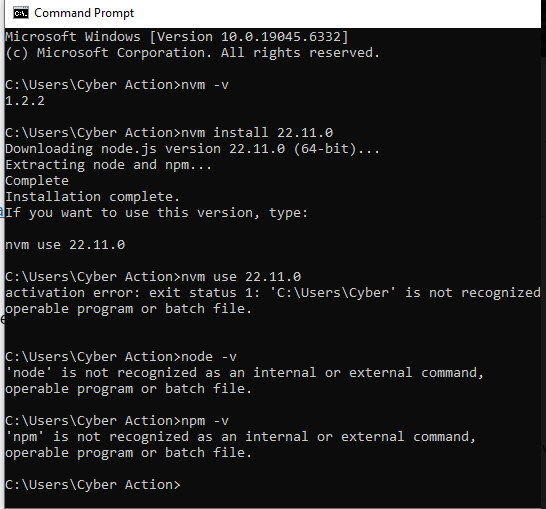
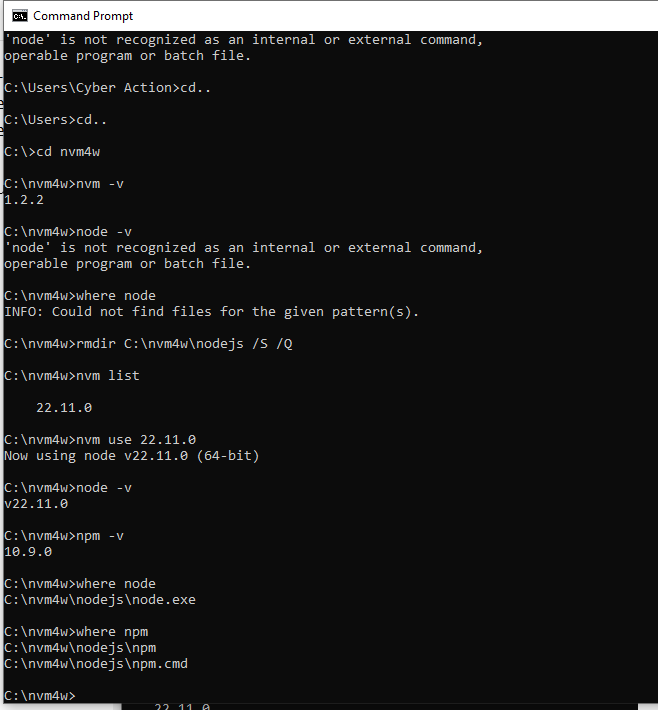
1. NVM & Node.js (v22.11.0)
Installed Node v22.11.0 using NVM for version control.
Confirmed autoloading paths work with WordPress plugin structures.
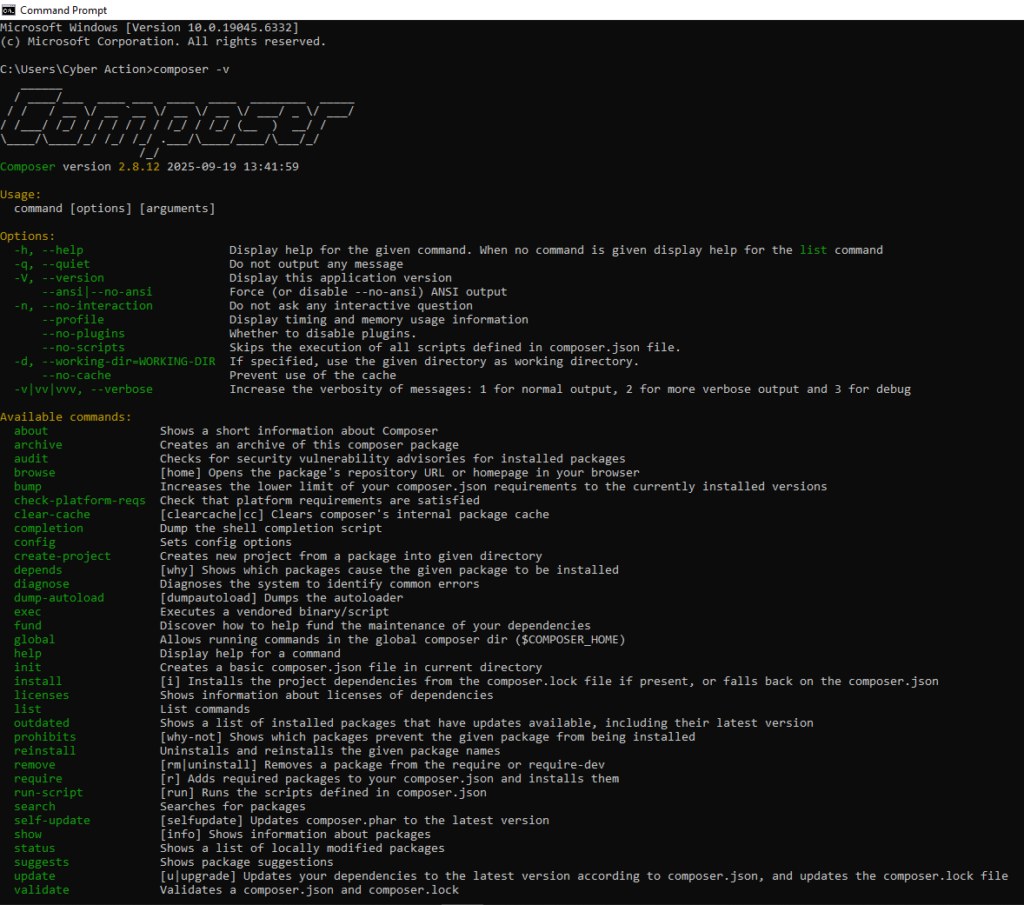
What is Composer and Why It Matters
Composer is a dependency manager for PHP – it helps you install, update, and manage PHP packages or libraries that your project needs.
Instead of manually downloading ZIP files or copying PHP libraries, Composer automatically installs and keeps them updated through a file called composer.json.
For WordPress engineers, Composer is especially useful for:
Installing tools like PHP_CodeSniffer and WordPress Coding Standards (WPCS).
Managing third-party PHP libraries for plugins or themes.
Keeping local development environments consistent across projects.
Think of it as your project’s package manager, similar to npm for Node.js but for PHP.
3. WGET
Installing wget on Windows
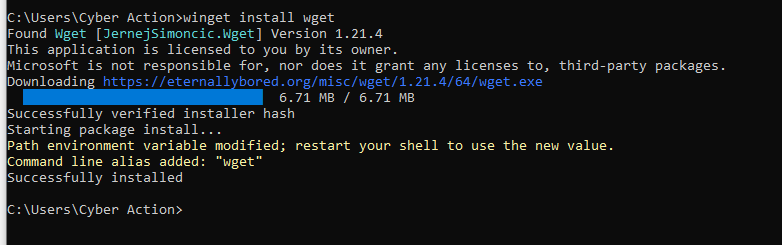
I installed wget using:
winget install wget
This will install the wget regardless your region’s Microsoft Store source.
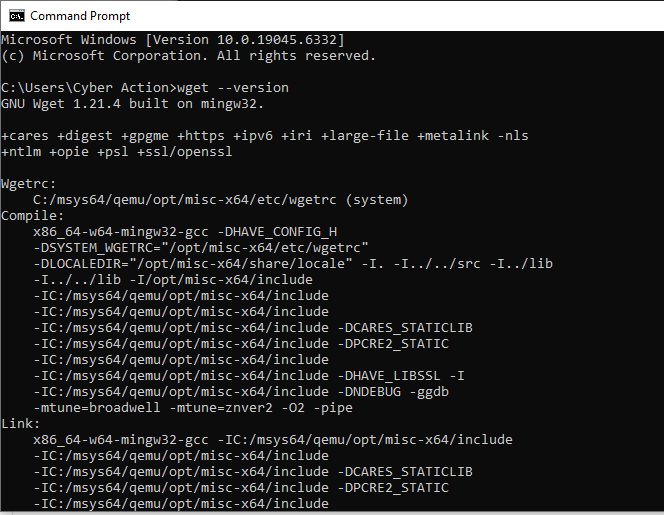
After installation, I restarted the terminal to refresh the PATH variable. Verified it with:
wget --version
What is wgetand Why We Need It
wget (pronounced “web-get”) is a command-line tool used to download files or data directly from the internet using HTTP, HTTPS, or FTP.
You can think of it as:
“A downloader for developers like using a browser’s Save As… button, but from your terminal.”
Why It’s Useful for WordPress or PHP Developers
Fast setup: You can grab files, scripts, or archives without opening a browser. wget https://wordpress.org/latest.zip ⮕ Downloads the latest WordPress ZIP instantly into your current folder.
Automation:wget works in setup scripts so you can automatically install or update tools like: wget https://getcomposer.org/installer -O composer-setup.php php composer-setup.php
Headless servers: When you work on servers (e.g. via SSH), there’s no browser but wget lets you fetch what you need.
Training workflows: In software or web companies onboarding, it’s used in scripts that install or update dependencies (Composer, PHPCS, etc.), ensuring everyone has the same setup.
Further readings: https://formulae.brew.sh/formula/wget
4. Git & GitHub CLI
Version control is a key part of any technical or support workflow. Even if we don’t write production-level code daily, knowing Git helps us clone customer sites, test fixes, and push changes when collaborating with development teams.
Installing Git
Start by installing Git for Windows from git-scm.com/download/win. During installation, keep the default settings but make sure to select:
“Git from the command line and also from 3rd-party software.“
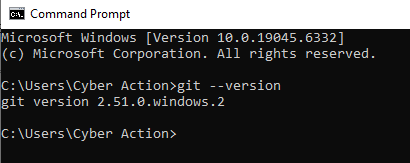
After setup, confirm Git works:
git --version
Expected output:
git version 2.46.0.windows.1
Installing & Linking GitHub CLI
Next, install GitHub CLI from cli.github.com. This command-line tool helps manage repositories, pull requests, and issues directly. Ideal for plugin or theme support workflows.
After installing, verify it:
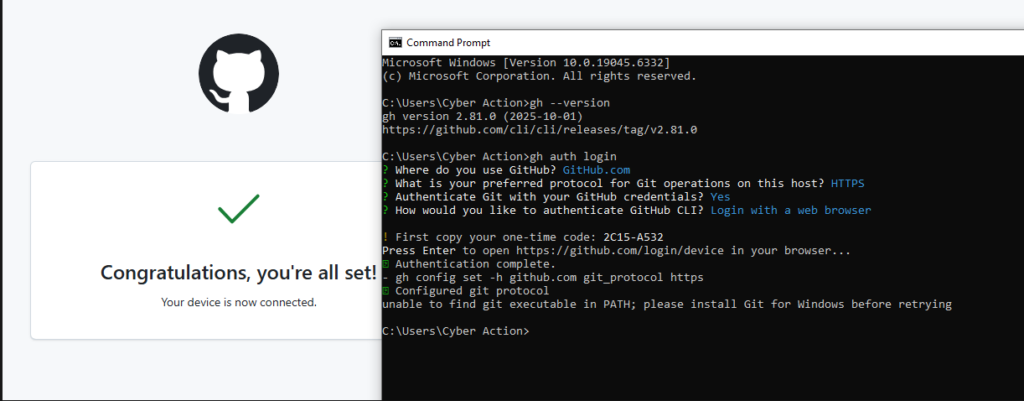
gh --version
Then run:
gh auth login
Follow the prompts:
Choose GitHub.com
Select HTTPS
Choose Yes for Git authentication
Pick Login with a web browser
Your terminal will show a short code like 2C15-A532 and open a page asking you to confirm the login. Enter that code and authorize access.
You’ll see:
✓ Authentication complete. Logged in as riffaz
However, if you see this message:
unable to find git executable in PATH; please install Git for Windows before retrying
It simply means GitHub CLI detected no Git installation. Just install Git from git-scm.com as shown above, then re-run:
gh auth status
It should now confirm:
✓ Logged in to github.com as riffaz
✓ Git operations for github.com configured to use https protocol.
Why this matters
This combination of Git and GitHub CLI allows technical engineers to:
Clone or fork repositories for debugging.
Reproduce or verify issues reported by customers.
Track commits, branches, and pull requests directly from the terminal.
Together, they form the foundation for collaborative, code-aware technical support.
5. Setting up Local Development Environment
For a WordPress Technical Support Engineer, having a local development environment is essential. It lets you reproduce client issues safely, test fixes before deploying them, and experiment with plugins or code without affecting live sites.
You can set up a local environment using tools like LocalWP, Lando, or wp-env. Since I’m on Windows, I used LocalWP, which is the simplest and most stable option for WordPress development.
Download the Windows version and install with default settings.
No special configuration is needed — just launch the app after installation.
⚙️ Step 2 – Create Your First Test Site
Once installed:
Open LocalWP
Click “Create a New Site”
Name it something like test1 (I used this name for my setup)
Choose Preferred Environment (PHP 8+, MySQL 8+, Nginx or Apache — defaults are fine)
Set up your WordPress admin credentials (for test use, I used admin / admin)
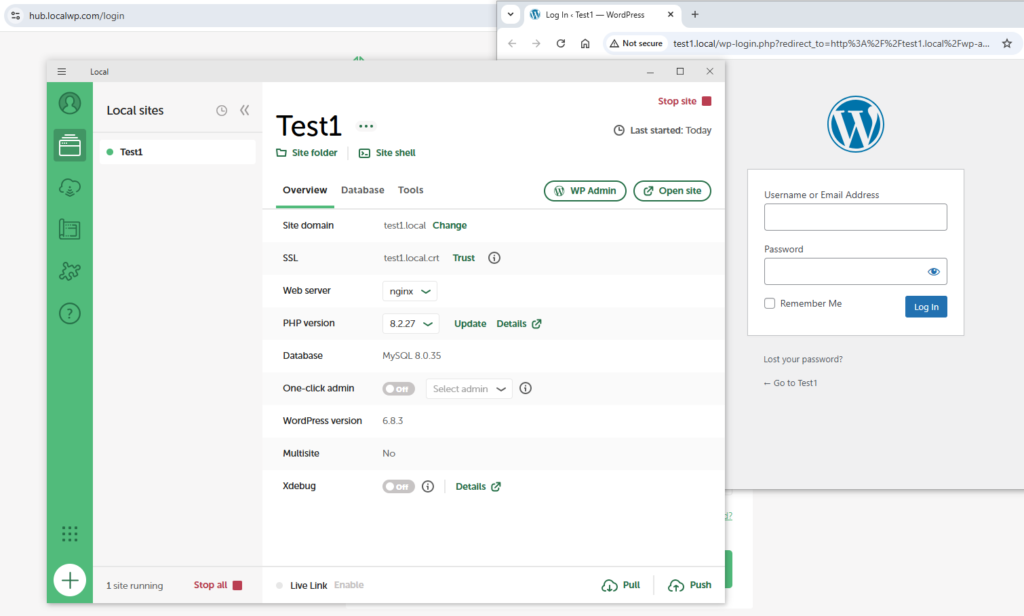
Once setup completes, click “Open Site”
Your new WordPress site should now open at something like: http://test1.local
🧠 Step 3 – Verify Everything Works
LocalWP automatically installs PHP, MySQL, and WP-CLI.
After creating your site in LocalWP, you’ll see it listed in the left sidebar. Click on your site name (for example, Test1). This opens the site overview screen.
At the top of this screen, right below the site name, you’ll find two links:
Site folder | Site shell
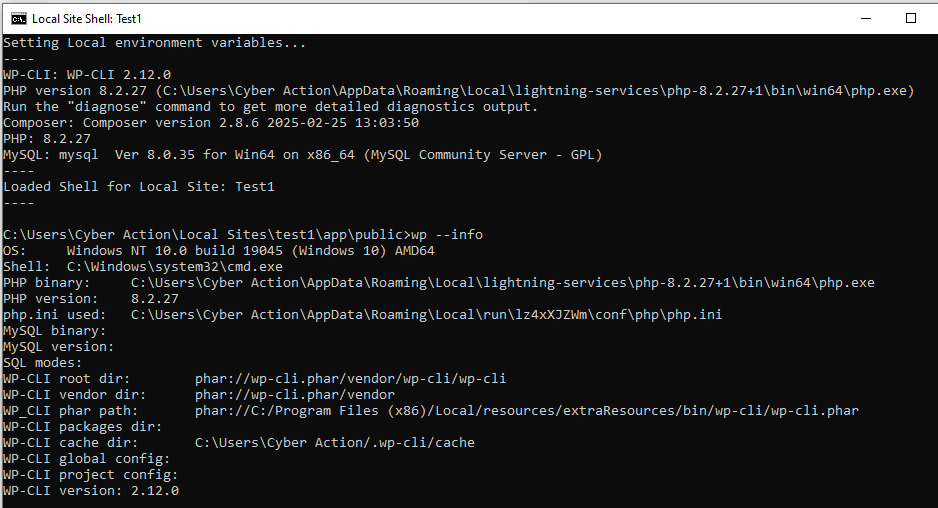
Click “Site shell” — it will open a terminal window (Command Prompt or PowerShell) connected directly to your local WordPress environment.
From there, you can run commands like:
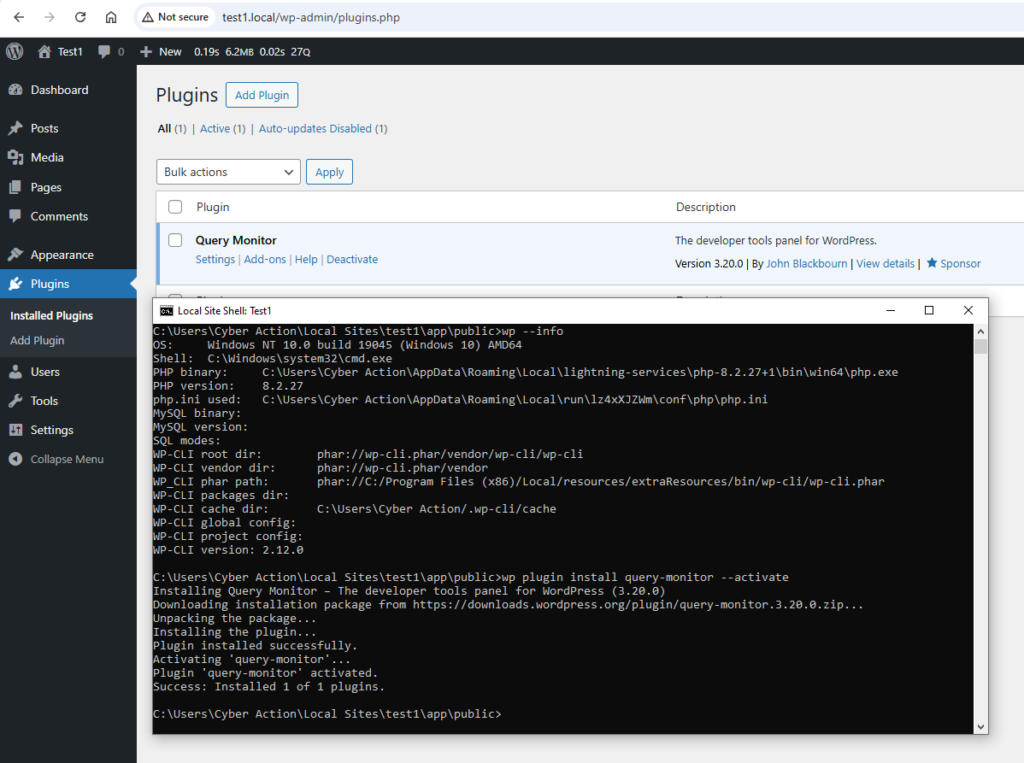
wp --info
to confirm WP-CLI is working and properly connected to your site.
🧩 Step 4 – Optional: Install a Test Plugin
To confirm everything is working smoothly, I installed Query Monitor, a debugging plugin often used in support:
wp plugin install query-monitor --activate
Then I logged into wp-admin and confirmed it appeared under “Plugins.”
Everything worked perfectly on the first run.
What I learned today
Even after years of working with WordPress, I realized how valuable a structured environment setup really is. Following a step-by-step onboarding flow helped me see why each tool matters. Not just how to install it.
NVM keeps Node.js versions isolated for each project.
Composer manages PHP packages cleanly for reproducible setups.
GitHub CLI streamlines repo access and authentication from the terminal.
LocalWP provides a stable, production-like WordPress environment in minutes.
One key takeaway for Windows users: if your username contains spaces, tools like npm may fail. Setting up a clean path or using a short folder name avoids those hidden headaches.
This approach ensures a reliable, scalable workflow for WordPress development and debugging whether you’re building themes, plugins, or managing client sites.
I am currently looking for a full-time remote job. In the meantime, I am also available for any freelancing work within my expertise, which you can find in my contact form
** If you are considering employing me for a traditional office job, I would be open to it if offered a fair salary and if the job is located in a country I prefer.